How to Create an E-Invoice: A Practical Guide
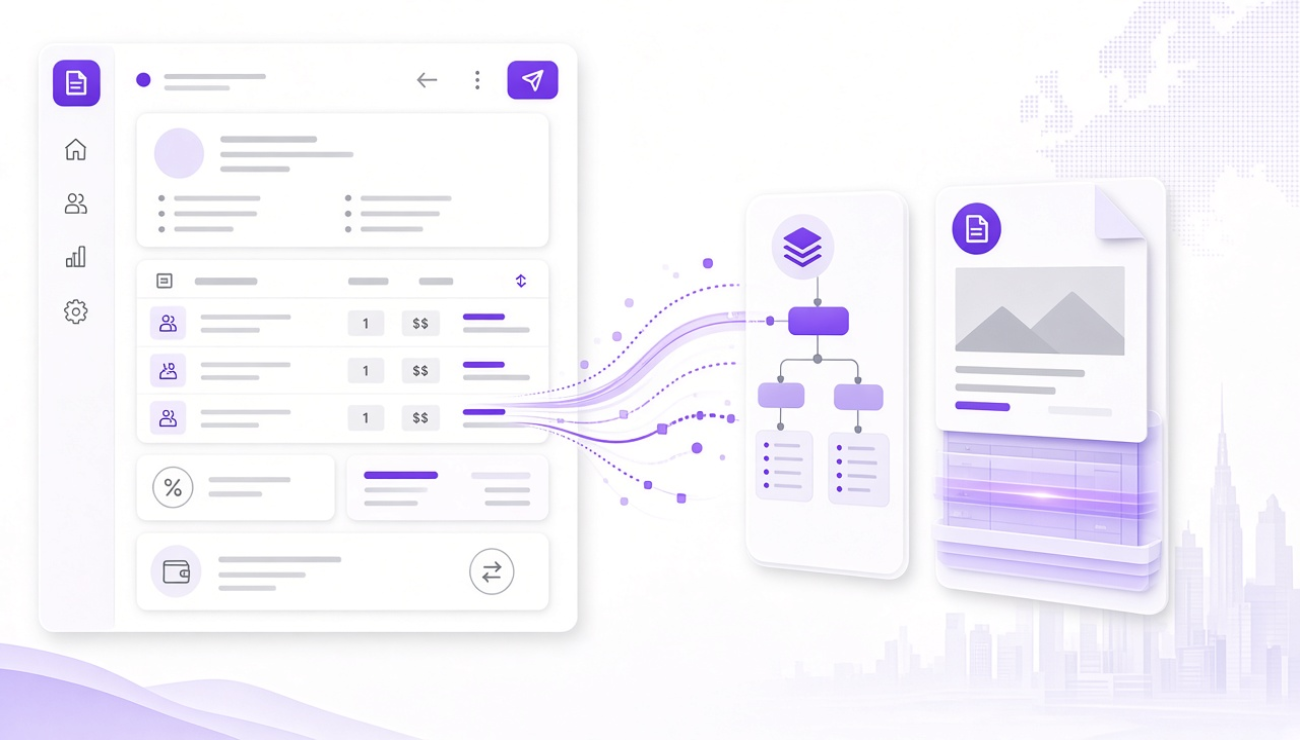
Creating an e-invoice is more than saving an invoice as a PDF and sending it by email.
A genuine e-invoice contains structured electronic data that can be processed by software. In Germany, XRechnung and ZUGFeRD are two well-known formats for electronic invoices.
But how do you create an e-invoice correctly? Which information needs to be included, and what should freelancers and small businesses consider?
What is an e-invoice?
Under Section 14 of the German VAT Act, an e-invoice is an invoice issued, transmitted and received in a structured electronic format that enables electronic processing.
A simple PDF invoice is therefore not automatically an e-invoice.
A PDF can be sent electronically, but it normally does not contain structured invoice data that accounting software can process directly.
An e-invoice, on the other hand, contains structured invoice information.
Which formats can be used?
Two formats are particularly well known in Germany:
XRechnung
XRechnung is a structured XML format. Invoice data is provided in a machine-readable form and can be processed automatically.
ZUGFeRD
ZUGFeRD is a hybrid format. It combines a human-readable PDF component with structured XML data in a single file.
The German Federal Ministry of Finance states that XRechnung and ZUGFeRD from version 2.0.1, subject to the applicable requirements, meet the requirements for a permitted e-invoice format.
What information must an e-invoice contain?
An electronic invoice must generally contain the required invoice information.
This includes, among other things:
- full name and address of the supplier;
- full name and address of the customer;
- tax number or VAT identification number;
- invoice date;
- unique invoice number;
- quantity and type of goods supplied or nature and scope of the service;
- date of delivery or service;
- net amount;
- applicable VAT rate;
- VAT amount or an indication of tax exemption.
The specific requirements are defined in Section 14 of the German VAT Act. Additional information may be required depending on the type of transaction.
How do you create an e-invoice?
The easiest approach is to use invoicing software that can generate a suitable structured electronic format.
A typical process looks like this:
1. Enter customer information
Start by entering the recipient's information.
This may include their name, address and, where applicable, VAT identification number.
2. Add invoice information
Enter the invoice number, invoice date and, where relevant, the date of the service or delivery.
A unique invoice number is important for identifying the invoice.
3. Add products or services
Add the individual invoice items.
For each item, enter the relevant description, quantity, price and VAT rate where applicable.
4. Add payment information
Add payment terms and bank information where appropriate.
Additional information may be required depending on the transaction.
5. Select the e-invoice format
Create the invoice in the appropriate electronic format.
For some business partners, XRechnung may be required. In other situations, ZUGFeRD can be a practical option when both a visual document and structured data are useful.
6. Check the invoice
Before sending the invoice, check that the information is complete and logically consistent.
The German Federal Ministry of Finance recommends validating e-invoices. Validation can help identify missing or inconsistent required information and reduce errors.
7. Send the invoice
Once checked, send the e-invoice to the recipient.
The recipient's accepted format and transmission method should also be taken into account.
Can you convert a PDF into an e-invoice?
Simply renaming a PDF or saving it again as a PDF does not turn it into an e-invoice.
An e-invoice must contain invoice data in an appropriate structured electronic format.
Depending on the source document, software can transfer the invoice data and generate, for example, an XRechnung or ZUGFeRD invoice.
The resulting invoice should then be checked for both technical and content-related correctness.
Create e-invoices with Zefare
With Zefare, freelancers, self-employed professionals and small businesses can create digital invoices and offers.
Invoices can be created in formats including XRechnung and ZUGFeRD.
The process remains straightforward: enter customer information, add services or products, create the invoice and use the appropriate electronic format.
What should you check before sending an e-invoice?
A quick review before sending can help:
Invoice data: Are the name and address correct?
Invoice number: Is the number unique?
Service information: Are the service, quantity and date correct?
Tax: Are the VAT rate and amount correct?
Format: Does the selected format meet the applicable requirements?
Recipient: Can the recipient process the selected format?
Validation: Has the electronic invoice been checked for technical and logical errors?
These checks can be particularly useful when invoices are processed automatically.
Conclusion
Creating an e-invoice does not simply mean sending a PDF electronically.
The invoice data must be provided in a suitable structured electronic format. In Germany, XRechnung and ZUGFeRD are particularly relevant.
The basic process is straightforward:
Enter customer information → add invoice data → add services or products → select the format → validate the invoice → send it to the recipient.
With suitable invoicing software, this process can be integrated much more easily into everyday business operations.